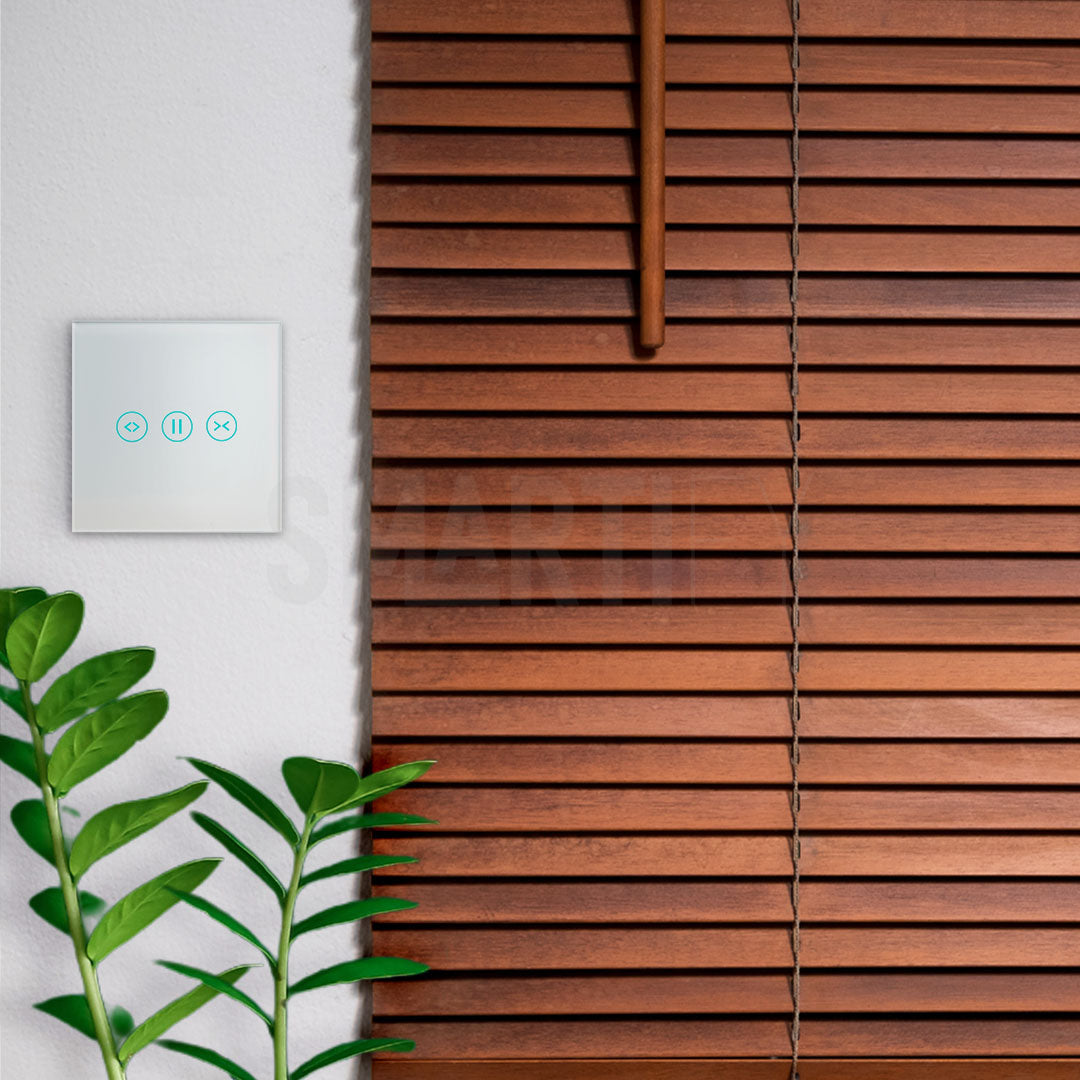
Learn how to calibrate your smart switch vPro for Smartlife roller shutter/Tuya in the app, respecting the model options.
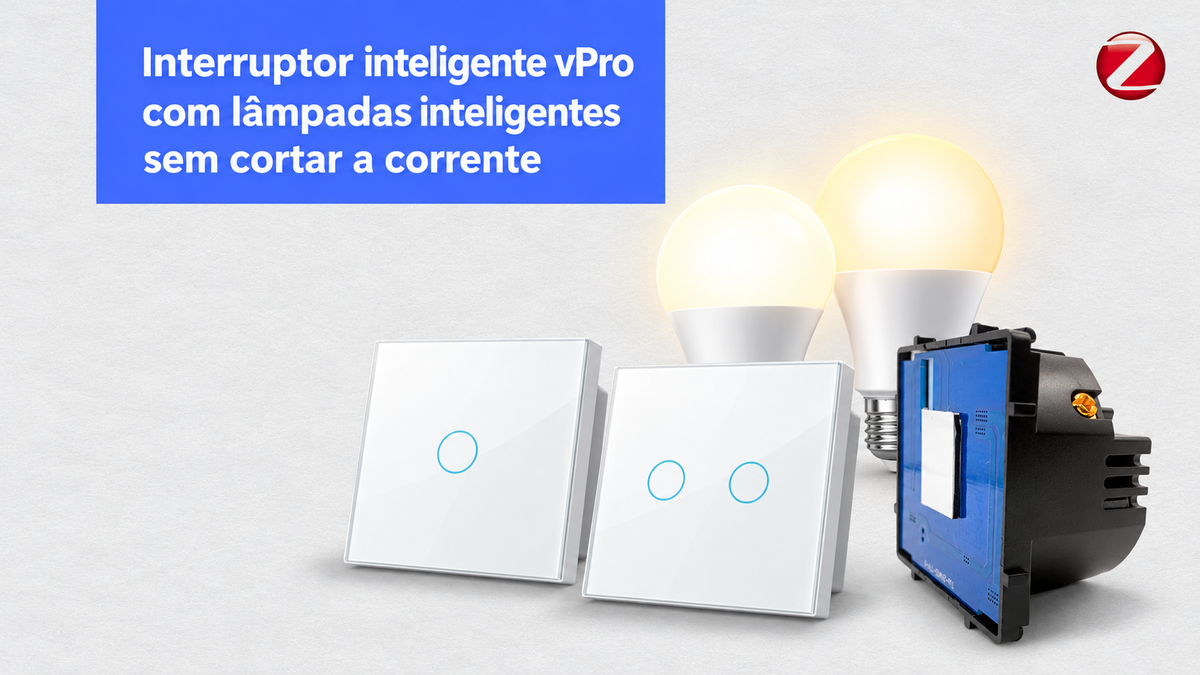
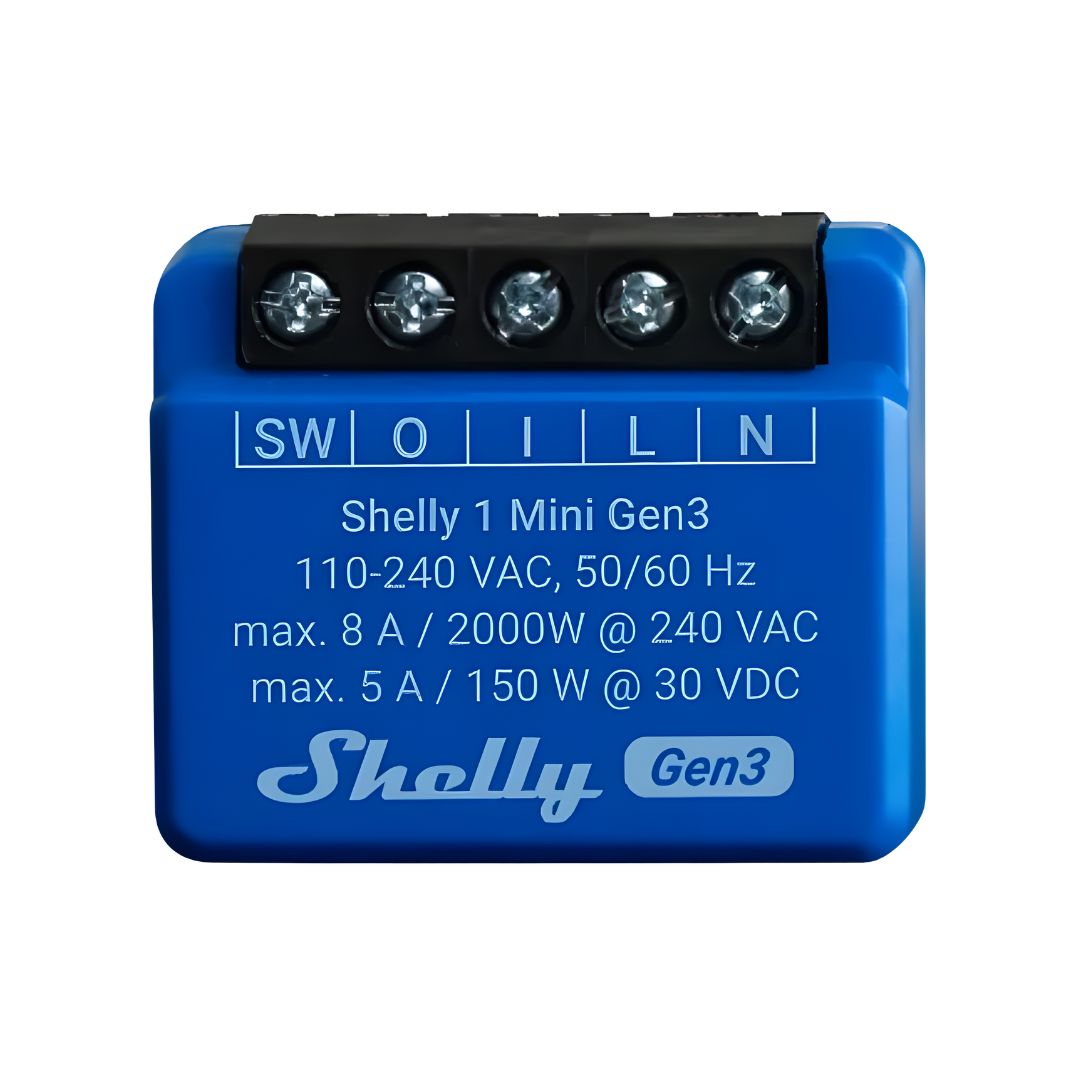
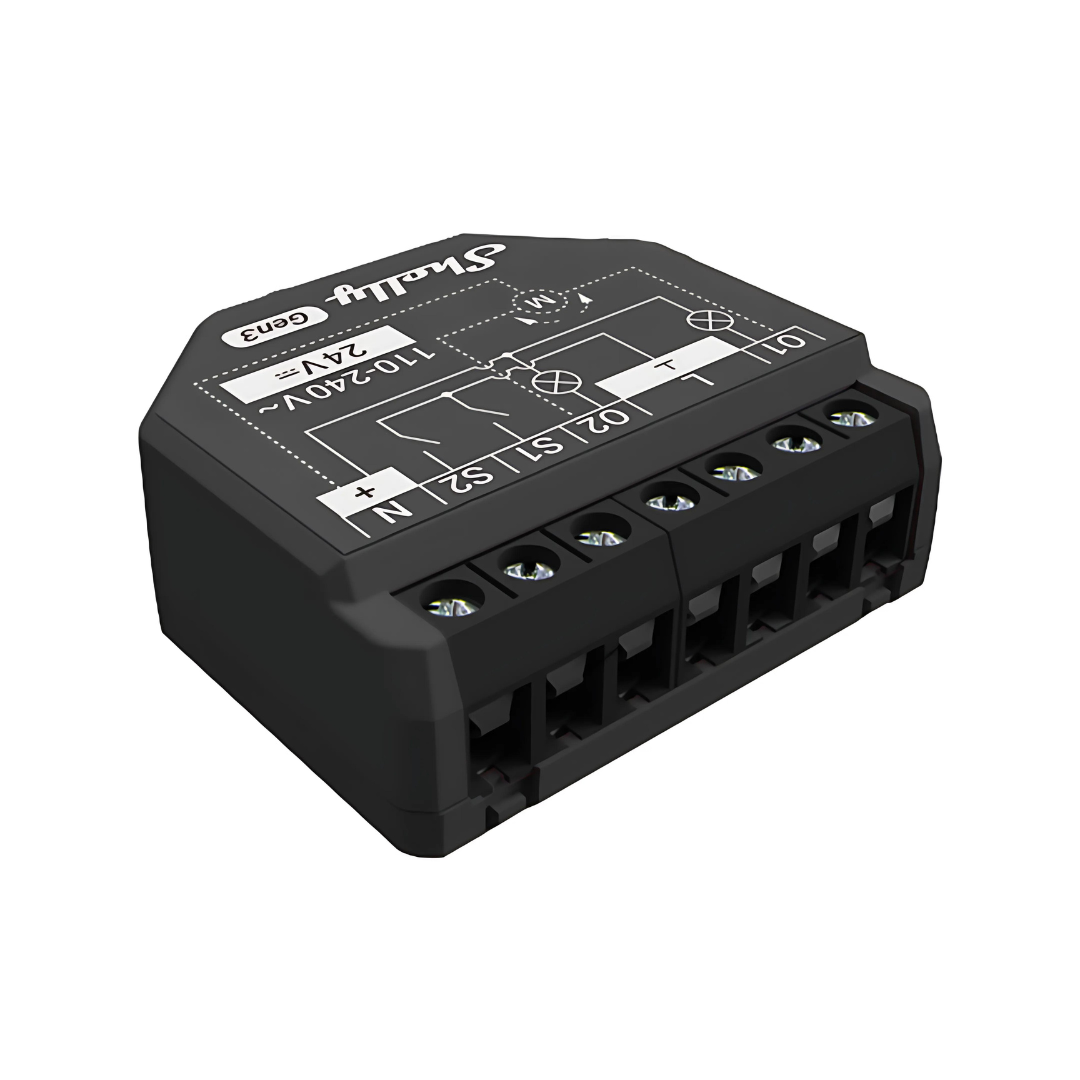
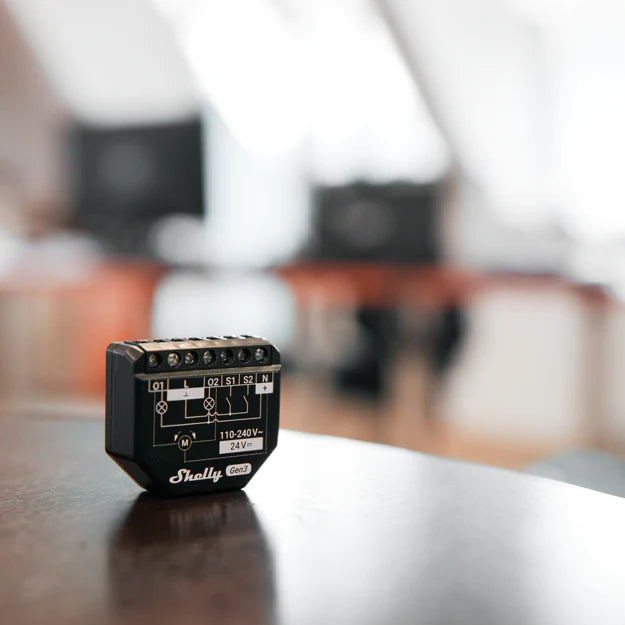
The faceplate and the module are sold separately: a complete switch requires both. The WiFi and Zigbee modules connected here require neutral; the Zigbee version also requires a compatible gateway.
Start here: synchronize the roller shutter with the app, measure the ascent, and save the real time.
If the app shows "Running", "Opening", "Closing" or equivalent, wait. Only proceed when the command finishes, the app indicates open/closed, and the roller shutter is physically in that position. Names vary by model.
How to do it, in the right order

1. Fully close the roller shutter and wait for the app to confirm closed. If the module stops before the end, complete the closing by the procedure allowed in the manual; do not force the motor or bypass protections.
2. If the factory time is insufficient, wait for the command to finish and set a higher provisional time, if the model allows. Example: for about 29 seconds of travel, 60 seconds may be a suitable temporary value, within the equipment limits.
3. With that value saved, open fully and wait for the app to finish executing and indicate open. Then close fully and wait for the closed confirmation. Do not move to the next command while the app is still executing.
4. From closed, time the ascent until the physical end of the movement. Stop the stopwatch at that moment, but wait for the app to finish executing and confirm open. The wait for the app is not included in the measurement.
5. Send the close command again. Wait for the physical stop and for the closed confirmation in the app. Only then save the measured real time and complete the calibration. Example: replace the provisional 60 seconds with the measured 29 seconds.
6. Test the full travel and the positions at 50% and 20%. If there are separate opening and closing times, measure each one. Respect the motor pauses.
The higher provisional time requires functional limit switches that stop the motor. Do not use this solution to compensate for a malfunction. The app does not replace physical verification; if the status does not match the roller shutter, stop and confirm the model procedure.
Step by step: measure and save
1. Prepare and close fully
Confirm that the roller shutter rises and falls without effort, abnormal noise, or obstacles. Open the correct device in the app and confirm that the Up command makes it go up and Down makes it go down. Then, fully close the roller shutter until the limit switch and wait for the physical stop and the closed confirmation in the app, with no movement/command pending. Do not start the measurement from an intermediate position.
2. Time a full ascent

Have a stopwatch ready. Trigger Up and measure the time from the start of the movement until the roller shutter is fully open and stops at the upper limit. If the model manual indicates another criterion for starting the count, follow that criterion. Record the real duration; for example, 29 seconds. Stop the stopwatch when the physical movement ends, but wait separately until the app finishes the command and indicates fully open. The wait for the app is not added to the measured time.
3. Confirm the value
After the application confirms fully open, send the close command again and wait for the movement to end and the confirmation of fully closed in the application. Only then proceed to save the final time. If necessary, repeat the measurement to confirm the result, respecting the pauses and the motor's operating cycle. Do not perform many consecutive ups and downs: some motors may overheat and activate thermal protection. If the times vary significantly, investigate the mechanical operation before calibrating.
4. Save in the application

In the device settings, look for an option equivalent to Calibration, Opening time, or Travel time. Choose the time-based mode, when available, and enter the measured value in the requested unit: seconds or another indicated format. With the roller shutter and the application already in the closed state, with no pending command, save the actual timed duration and complete the presented calibration sequence. If you used a provisional value of 60 seconds and measured 29 seconds, replace the provisional value with 29 seconds. Do not enter 29 seconds if the field expects tenths of a second or minutes; always confirm the unit.
Understanding calibration and application status
What is calibration for?
Calibration teaches the controller how long the roller shutter takes to travel the path. It is this reference that allows you to request intermediate positions in the application, in schedules, or in scenes, when the model supports these functions. It does not change or replace the motor's mechanical limit switches.
Automatic or by time?
Automatic calibration: in models that provide it, the application guides a learning path. Follow the instructions for that equipment, as the sequence may vary. You should not assume that all Tuya switches automatically detect limits in the same way.
Calibration by time: in models with manual duration entry, the user measures the path and saves the value. In the installation practice of Smartify, this is the usually recommended approach when available and automatic calibration results are not consistent.
Not all Tuya models have both modes or the same menus. This guide applies to WiFi and Zigbee versions only when the application, the gateway, and the model provide the described configuration. In the Zigbeeversion, access to options also depends on the gateway and integration used.
Why is it necessary to wait for it to stop executing?
Sometimes, the factory default time in the module is shorter than the actual path of the roller shutter. The command may end before the path is complete, or the application may still be counting its time after the motor stops. Before calibrating, it is necessary to obtain a coherent reference between the physical position and the state shown in the application.
In models with this behavior, it is not enough to see the roller shutter stopped: to proceed in the settings, you must also wait for the application to stop indicating movement and confirm the final position. Some versions block calibration or time changes until the logical command/path ends. This limitation is not universal across all Tuya devices.
The application guides the configuration sequence, but does not replace physical verification: if it indicates closed when the roller shutter is still open, or open when it is still closed, do not consider the set synchronized. The higher provisional time is only suitable if the motor's limit switches are correctly adjusted and cut the movement; do not use this method to compensate for faulty limit switches.
Why measure the rise time?
When the controller has a single reference time for opening, Smartify recommends measuring the ascent, from fully closed to fully open. The descent may take less time, depending on the load, gravity, friction, the motor, and the construction of the roller shutter itself. This does not mean that the roller shutter ceases to have weight during the descent.
If the device has separate fields for opening and closing, measure both paths and save the actual time for each direction. If the manufacturer requires a different learning sequence, follow the manual for that model. Do not force the use of a single time where the equipment provides for two.
Example: an ascent of 29 seconds
In a simple time-based model, starting from the roller shutter fully closed and considering 100% as open, 50% theoretically corresponds to about 14.5 seconds of ascent; 20% corresponds to about 5.8 seconds. These numbers are examples to understand the logic, not values to be copied for all roller shutters.
Is the percentage exact?
Calibration can make the control more consistent, but the position remains an estimate when there is no position sensor. The winding of the slats, clearances, start-up delays, and differences between ascent and descent can mean that 50% of the time does not correspond exactly to half of the visible height. The opening of the gaps is also not necessarily proportional to the indicated percentage.
Validate 50%, 20% and the limits

5. Test from a known reference
After completing the calibration indicated by the manufacturer, confirm full opening and closing. Starting from the roller shutter fully closed, request 50% and observe where it stops. Close it completely again and test 20%. Also confirm the behavior when starting from the open position, because the two directions may have different times.
6. Adjust and save the scenes
If you cannot edit the time or start the calibration, first confirm if the application has finished the movement and displays a final position. In models where this is a requirement, waiting for completion avoids trying to save during an active command. If the positions are not consistent, measure again and confirm the saved value and unit. Do not increase or decrease the time just to hit an intermediate position, compromising the full path. Only after validating the operation should you save scenes, for example Living Room at 50% or Bedroom at 20%, according to the user's preference.
If something does not match
Does the application show 0% when the roller shutter is open? Some devices show the percentage of closing, others of opening. Confirm the convention on your model before reversing any setting. Does the Up button make it go down? Check the motor direction option, if it exists; wiring changes must be made by a qualified professional.
Does the time field not appear? Your model may use only a calibration assistant or not provide that option in the current integration. If the field exists but is locked, wait for completion in the application and consult the model's procedure; not all have the same lock. Consult the manual or contact Smartify with the product reference and a screenshot of the panel. Avoid generic factory reset instructions, as they may erase the pairing and scenes.
Safety: keep people, animals, and objects away during movement. Do not force the roller shutter against obstacles. This guide only covers application settings; do not open the switch or intervene in electrical connections. If there is jamming, overheating, or abnormal noise, stop the tests and request assistance.
If you have any additional questions, talk to us:
🔗 WWW.SMARTIFY.PT
📲 93 223 30 33
📩 geral@smartify.pt
📍 Rua dos Bombeiros Voluntários 2, Loja A, 2675-303 Odivelas, Lisbon, Portugal 🇵🇹
Products in this guide
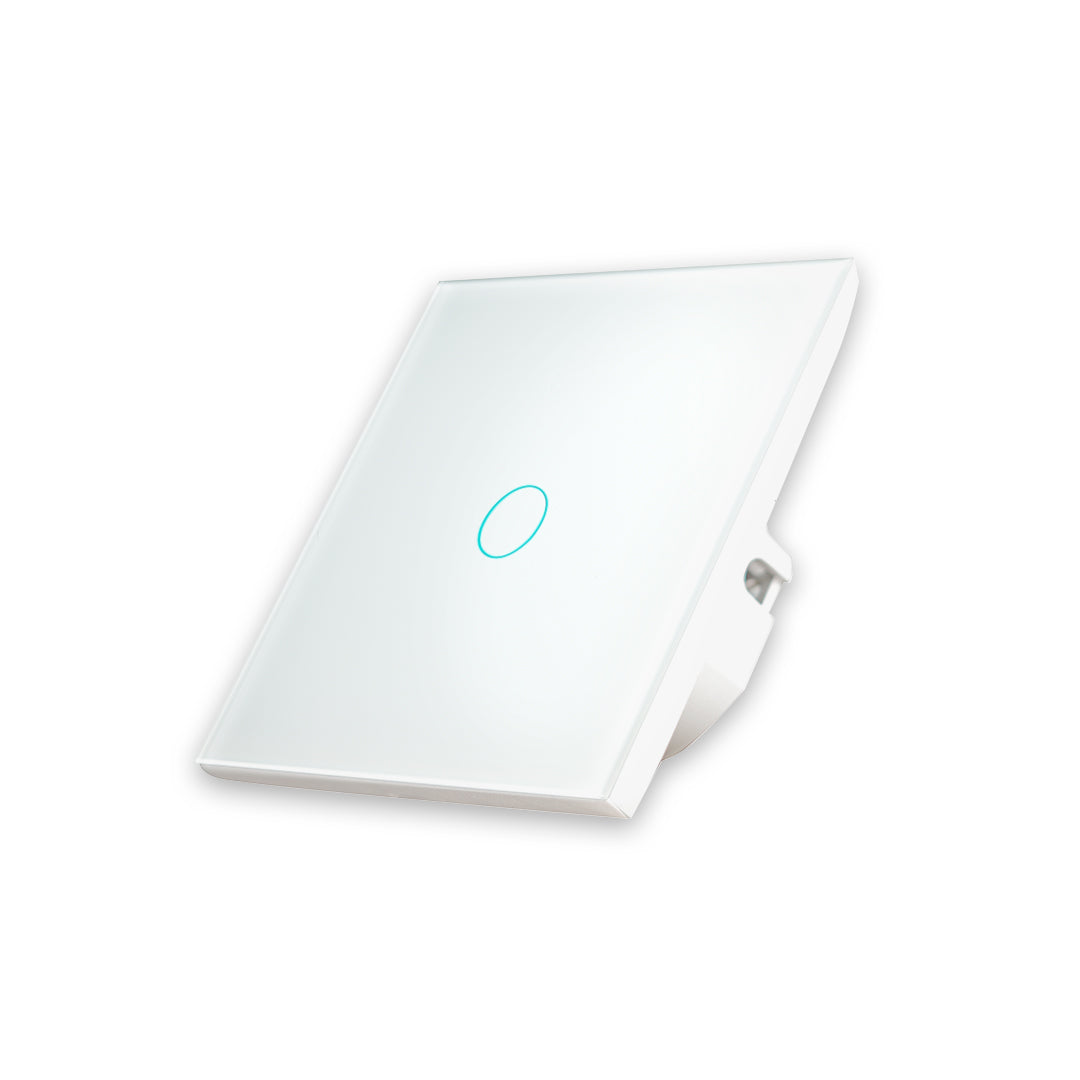
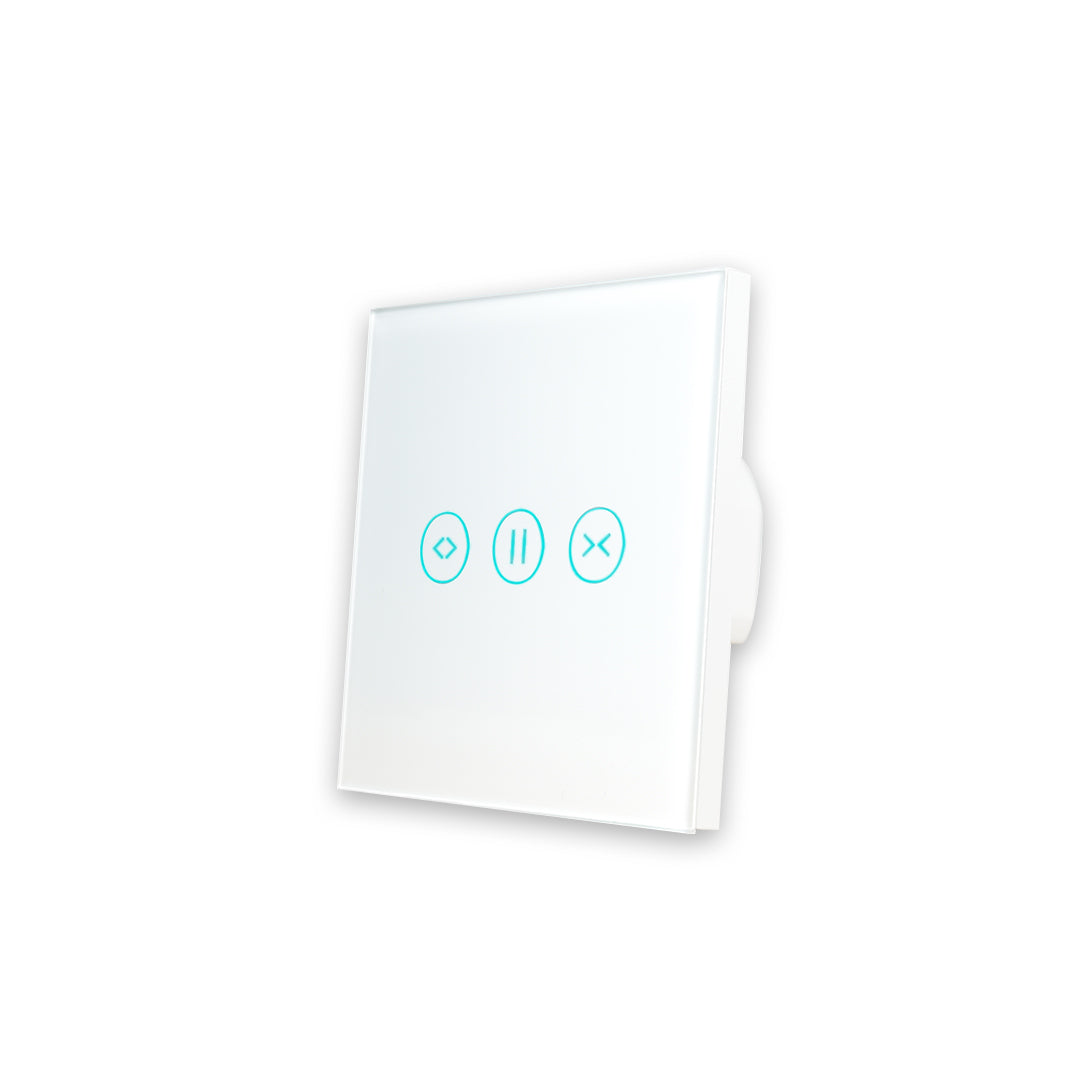
- Roller shutter faceplate vPro white — SYPE1ESBR
- Roller shutter module vPro WiFi with neutral — SYPMESWF
- Roller shutter module vPro Zigbee with neutral — SYPMESZB
The faceplate and the module are sold separately. For a complete switch, choose the faceplate and one of the modules. Both modules require neutral; the Zigbee version also needs a compatible gateway.